If you are experiencing issues with the auto-updater, you can update manually by following these steps:
- Download the required files: click here to download.
- Extract the contents of the ZIP file.
- Press Win + R to open the Run window.
- Type
%appdata%/otclientv8/Tibia Old Serverand press Enter.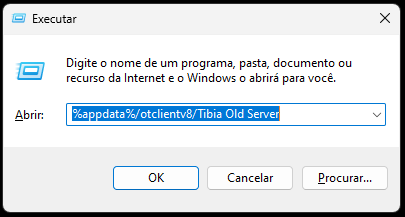
- A folder will open, as shown below:
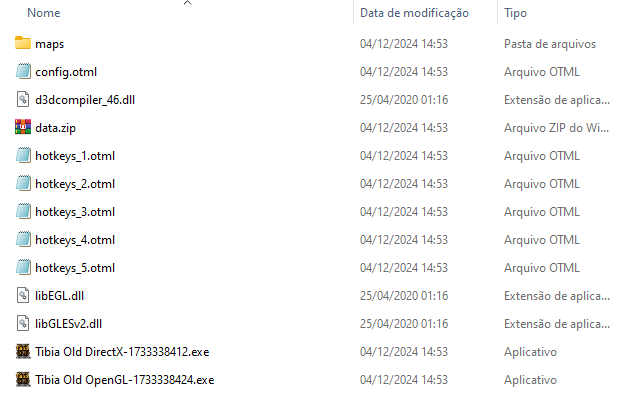
- Copy the extracted files from the ZIP into this folder, replacing the existing files.
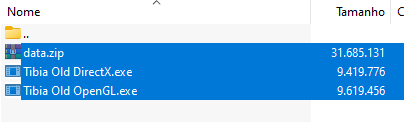
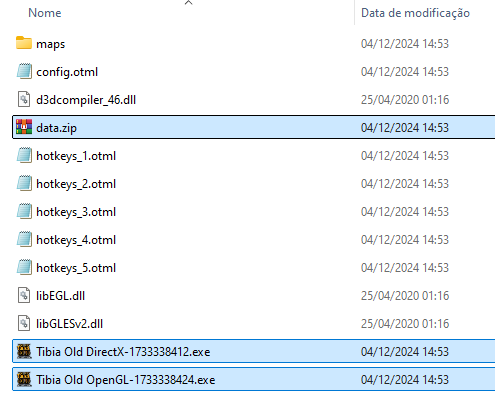
Once the files are replaced, your client should be up-to-date and ready to play.
If your client is not working but the auto-updater is functional, follow these steps to reset your client:
- Press Win + R to open the Run window.
- Type
%appdata%/otclientv8/Tibia Old Serverand press Enter. - A folder will open.
- Delete all contents of the folder, except your hotkeys files.
- Open the client and wait for the auto-updater to finish updating.
Your client should now function correctly.
If you are facing this fatal error, follow the steps below.
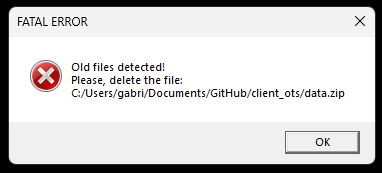
- Press Win + R to open the Run window.
- Type
%appdata%/otclientv8/Tibia Old Serverand press Enter. - Delete all contents of the folder, except your hotkeys files.
- Open the client and wait for the auto-updater to finish updating.
Follow the steps below to fix the issue:
- While logged in, press Ctrl + Shift + W.
- Relog your character.
- The mini windows should be reset to their standard positions.


